Show WrenchLane the problem: attach a video in the chat
Some things are faster to show than to type. You can now attach a short video in the vehicle chat or when starting a new diagnosis. Record the scan tool screen, the warning lights or the part itself. WrenchLane analyses the video and uses that information in its answer.
Attach a video, the same way as a photo
Tap the + button, Attach files, in the vehicle chat or in the description box on the new diagnosis form and select a video. The video shows up as a chip with its name, marked no sound.
The answer uses what the video shows
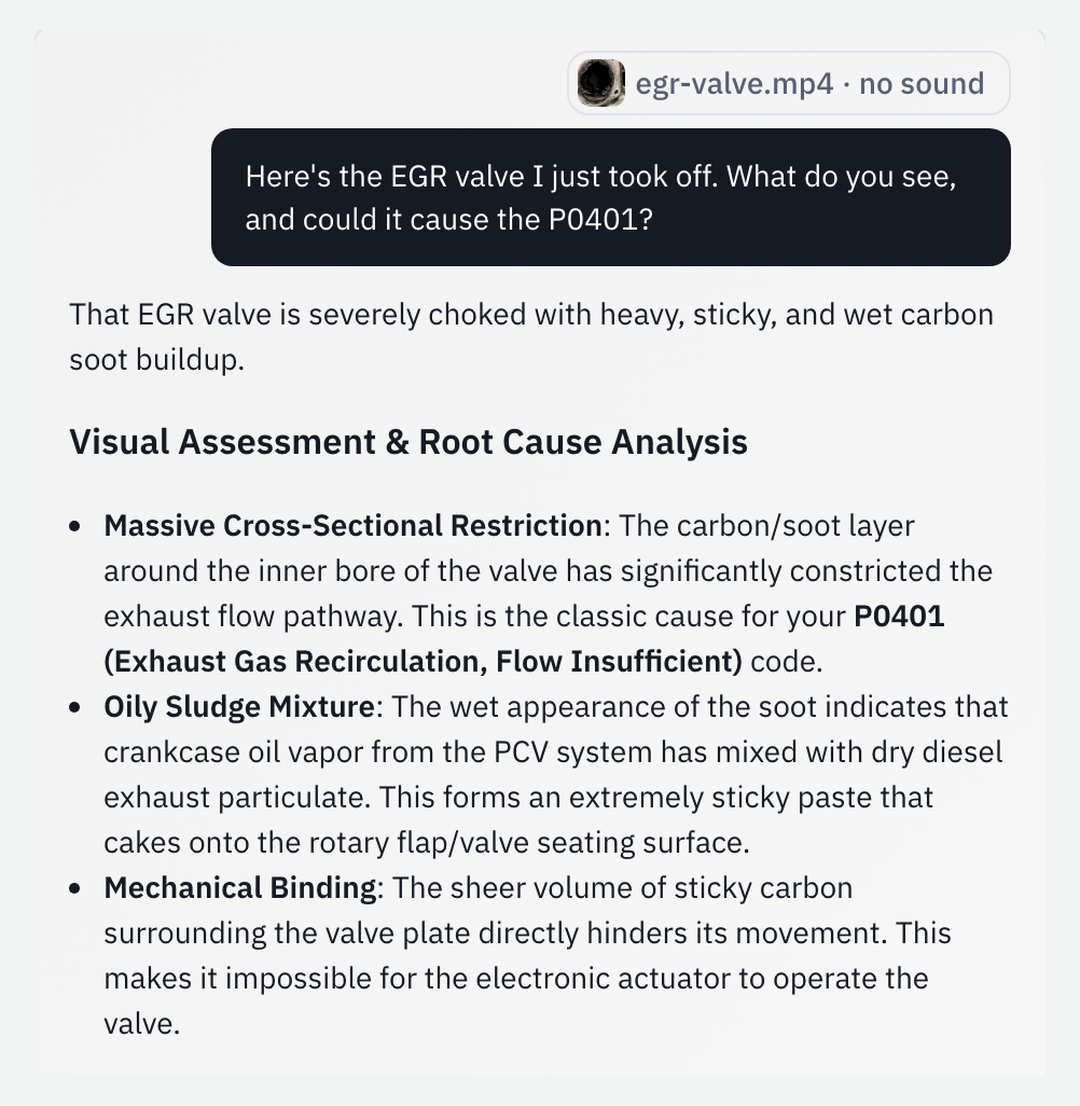
Ask your question as usual. WrenchLane analyses the video and uses that information in its answer: the codes on the scan tool screen, a warning light, a leak or a worn part.
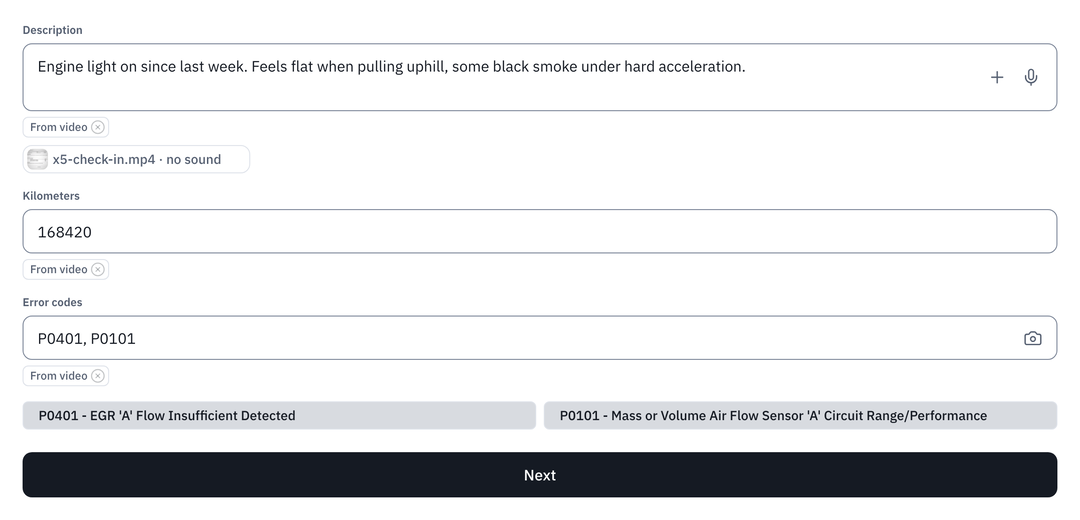
From video fills in your new diagnosis
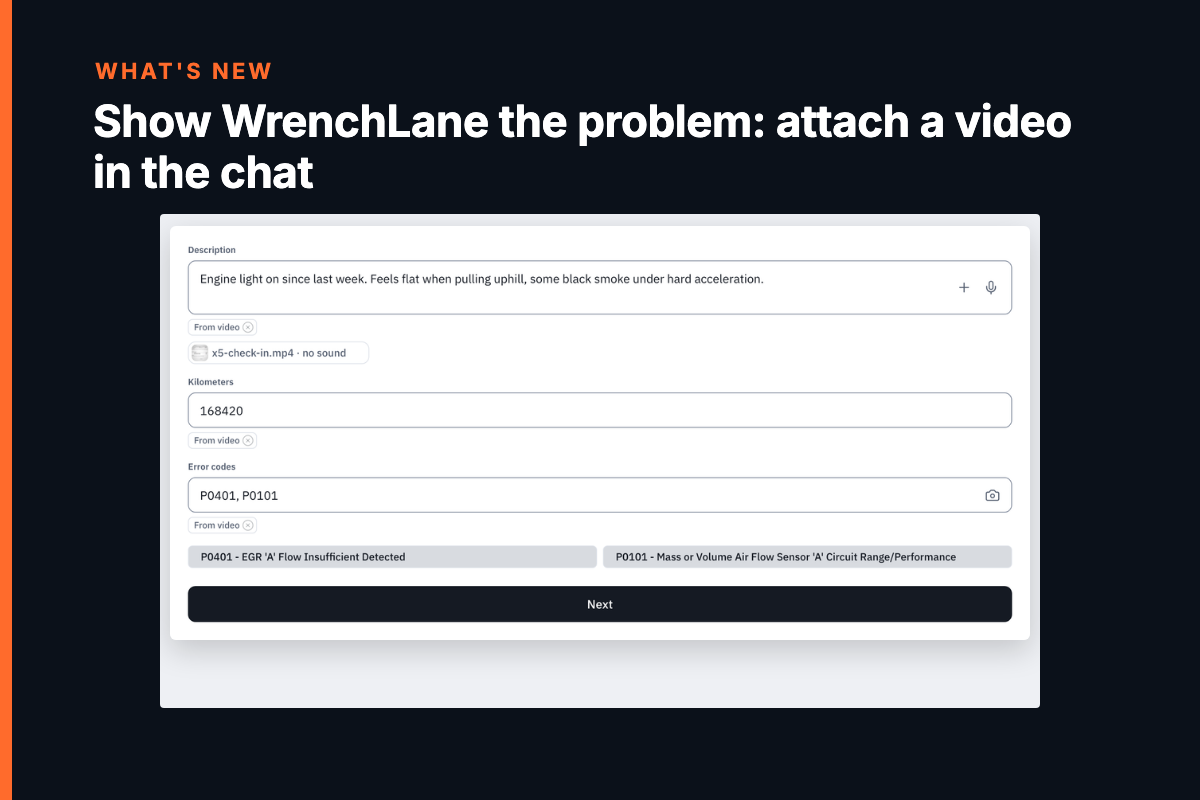
When starting a new diagnosis, record the job card and the scan tool screen. The complaint, the mileage and the error codes WrenchLane can read are filled in for you, each marked From video. Check them, add anything else you know, and start the diagnosis.
What to record
Record what you can see: the scan tool screen as you scroll through the codes or live data, the warning lights on the dash, a leak, a worn or damaged part, a label or a connector, or the job card with the customer's complaint.
Good to know
WrenchLane analyses the video, not the audio (yet), so a clip of a noise will not help. Keep the clips short and hold the phone steady. If a video can't be read on your device, attach a screenshot instead.
Where it works
Video in the chat works on the web at app.wrenchlane.com and in the iPhone, iPad and Android apps. On Android you can also record a video directly with Take video.
See it in action
Watch the short demo below.